Indigo Plugin Developer's Guide v2.0
In this guide
Introduction to the Indigo plugin bundle format: the required Info.plist keys, folder structure (Server Plugin, Resources, Packages, Menu Items), and how the Indigo Plugin Host (IPH) sandboxes and manages each plugin process. Start here before reading the XML Reference or the implementation reference for plugin.py.
Indigo Plugins and APIs
Indigo has a long history of extensibility - AppleScript Attachment scripts were available from the start (and deprecated in Indigo 7.4). Later, the Indigo Web Server (IWS) was added along with the IWS plugin and the ability to add custom images.
With Indigo 5.0, we added a new server plugin API that allows 3rd party developers to more natively add devices, triggers, and actions to Indigo. This server API allows users and 3rd party vendors to implement their own functionality in Python with full access to all the objects and events that Indigo understands (referred to as the Indigo Object Model, or IOM). Someone with sufficient skills can implement support for any kind of device and have them integrated into the Indigo UI as first-class citizens.
To deliver this additional functionality, we created the Indigo plugin bundle. Let’s start by first looking at the Application Support folder structure which the Indigo installer creates.
A note about version numbers: We increment the API version number when the API is revised. The major number (X.0) is incremented when we do something that will break backwards compatibility. The minor number (1.X) is incremented when we add new features. See the API version chart to see which API versions were released in which Indigo version. If any of the API tables in the documentation don't have a version number you can assume that the feature is available in API version 1.0 and later.
Indigo Support Folder Structure
Indigo's folder structure looks like this:
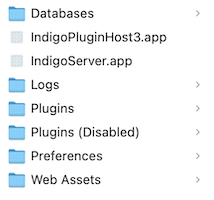
in this location:
/Library/Application Support/Perceptive Automation/Indigo [VERSION])
]
You'll notice these two folders in particular: Plugins and *Plugins (Disabled)*. These two folders are where the plugin bundles are stored (see the next section for details). Plugins that are enabled from the UI are located in the Plugins folder and when a user disables a plugin it’s moved to the *Plugins (Disabled)* folder.
The Indigo Plugin Bundle
We created a macOS Finder bundle type, the Indigo plugin bundle (.indigoPlugin), which has a very specific structure to encapsulate everything that a plugin needs to perform its functions:
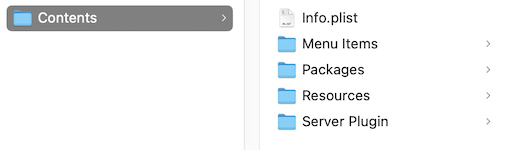
The first thing you’ll notice is that this is actually a real Finder bundle - so it appears to be a single file called Example.indigoPlugin. It’s moved around and treated as a single file, and all the user has to do to install your solution is to double-click it in the Finder and Indigo will install and enable it for you.
Creating a bundle is really easy: just create a folder in the Finder and end the name with .indigoPlugin. The Finder will prompt you about adding the extension .indigoPlugin. Click “Add”, and now your folder appears as a file. To get to the contents, right click on it and select Show Package Contents and it will open a separate window that is, in fact, just a new Finder window just like any other. In this window, you can create the folder structure above to have the elements that your plugin will need. Let’s go through each folder/file and discuss what it does.
First, though, you can see that there is only one top-level folder in the bundle - Contents. All other files/folders are inside that folder. This is the standard macOS bundle construction, so we decided to follow the pattern.
So, why did we go to the trouble of using the bundle format when there's just a file and a couple of folders? Because in future versions, we're going to add capabilities to the plugin bundle.
The Info.plist File
There’s only one file that’s directly inside the Contents folder and it’s required (read very important). The Info.plist file is a standard XML property list file that contains several important key/value pairs. The keys in this file will help Indigo understand what functionality your plugin provides, what it’s name and version number are, etc.
Editing a plist file isn’t difficult since it's just a text XML file that looks like this:
<?xml version="1.0" encoding="UTF-8"?>
<!DOCTYPE plist PUBLIC "-//Apple//DTD PLIST 1.0//EN" "http://www.apple.com/DTDs/PropertyList-1.0.dtd">
<plist version="1.0">
<dict>
    <key>PluginVersion</key>
    <string>1.2.3</string>
    <key>ServerApiVersion</key>
    <string>2.0</string>
    <key>CFBundleDisplayName</key>
    <string>Rachio Sprinklers</string>
    <key>CFBundleIdentifier</key>
    <string>com.yourorgidentifier.yourpluginidentifier</string>
    <key>CFBundleVersion</key>
    <string>1.0.1</string>
    <key>CFBundleURLTypes</key>
    <array>
        <dict>
            <key>CFBundleURLName</key>
            <string>https://somehost.com/path/to/help/</string>
        </dict>
    </array>
</dict>
</plist>
Here is what they keys are for:
PluginVersion(Plugin version) - this is the version number for your plugin - it’s shown to the user in the UI and will help you when supporting your plugin users. This key is required and should only contain numerical characters and periods (0-9 and .). For example, "1.0.5.2" is valid, but "1.0.5b2" is not. This is very important as it will help Indigo determine what do to when a user double-clicks a plugin to install it. If the version number is a higher version, Indigo will notify the user that the plugin will be installed and enabled. If the version number is lower than an already-installed version, Indigo will prompt the user to confirm that they want to downgrade the plugin. The version number is also used in version checking, and may eventually be used for automatic updates.ServerApiVersion(Server API version) - this value refers to the minimum server API version your plugin requires. In other words, if your plugin requires server API version 3.0, users must be running Indigo 2022.1.0 or later (the first Indigo version that supports server API version 3.0). Otherwise, Indigo will not allow the plugin to be installed. In rare circumstances, a new server API version may deprecate prior functions, so it's best to review the API Version Chart as new API versions are released.CFBundleDisplayName(Bundle display name) - this is a standard macOS key, and its value represents the name of your plugin. It’s used in a bunch of places in the UI, so make sure that it appropriately identifies your plugin. This key is required.CFBundleName(Bundle name) - this is another standard macOS key, and it's a name that should be less than 16 characters long and be suitable for displaying in menu items with various strings appended (i.e. "ShortName Device Controls"). If it's not provided we'll use the bundle display name instead.CFBundleIdentifier(Bundle identifier) - this is another standard macOS key, and it represents a unique string that represents your plugin. This is used for namespacing where necessary in the code, so it is critical that it is unique. The standard reverse DNS naming scheme is what should be used, although if you aren’t a company you’ll need to figure something out (maybe your blog, etc.). You should limit your bundle id to standard alphanumerics as special/extended characters may cause problems. You should not use the*com.yourorgidentifier.**namespace. This key is required.CFBundleVersion(Bundle version) - another standard macOS key, and it represents the layout of the bundle. This is controlled by us. This key is required.CFBundleURLTypes(URL types) - you must specify one URL that represents a web page where your user can get support. Your plugin will have a menu item called "About [PLUGIN NAME]" - when the user selects this menu item, the default browser will open to this URL. Note - this can be a link to your plugin's Github repo wiki if there is one, or could be a forum topic in the “User Contributions” section of our user forums if you don’t have any other place to host the support page. This key is required.
We want the user experience to be very similar for plugins, at least until it comes to configuration and use of the plugin, so you should be careful to get the Info.plist correct.
Menu Items Folder
You can drop Python scripts into this folder and they will show up in your plugin's sub-menu on the new "Plugins" menu. When the user selects the menu item, the script is executed. This is a really simple way of giving your plugin some visible UI.
Resources Folder
This folder is meant to contain any assets (like images, templates, etc.) that your plugin might need.
If there is an icon.png file in here, it will be displayed in the Plugin Store once you submit the plugin (see Plugin Store below for more details). Note that the code that loads config UI XML templates assumes that the Server Plugin folder is the root, so those template files should always be in the Server Plugin tree (i.e., Server Plugin/Templates/my_template.xml).
If this folder contains any of the following sub-folders, that content will be made available directly from the Indigo Web Server:
| Folder | Authentication | Description |
|---|---|---|
images |
IWS Configured | Any images in this folder or any sub-folders will be delivered if the user is authenticated via whatever authentication methods are enabled for IWS (digest, basic, api key). |
public |
None (open to all) | Any files in this folder or any sub-folders will be delivered to anyone without any authentication. |
static |
IWS Configured | Any files in this folder or any sub-folders will be delivered if the user is authenticated via whatever authentication methods are enabled for IWS (digest, basic, api key). |
videos |
IWS Configured | Any files in this folder or any sub-folders will be delivered if the user is authenticated via whatever authentication methods are enabled for IWS (digest, basic, api key). |
The URL for those files will be constructed using the plugin's id followed by the path. Here are some examples:
- https://yourreflector.indigodomo.net/com.your.pluginid/static/html/something.html
- http://localhost:PORT/com.your.pluginid/images/an_image.png
- http://YourServer.local:PORT/com.your.pluginid/public/open_to_all.txt
Packages Folder
This folder is optional, but it's useful when your users will need to install additional Python packages in order to use your plugin. Any library installs should be directed to the ../Contents/Packages/ folder. Note that this may be required in future versions of Indigo. See the Python Packages and Indigo page for more information.
Indigo Server Plugins
The most comprehensive way to extend Indigo is by implementing a Server Plugin. This mechanism allows you to add native components such as device types, events, actions, and menu items. Because we didn’t want to make the server plugin mechanism dependent on any single OS architecture, we decided to implement them in Python and have the description and user interface for the plugins’ components described in HTML and XML files respectively. We chose Python for several reasons:
- it’s object-oriented nature fits well with the IndigoServer’s representations of various objects
- it is easily interfaced with C++ - which is what the server is written in
- it’s cross platform so there’s a lot of documentation and expertise out there (many hardware makers supply a Python interface to their hardware)
- it’s easy to learn (really - we promise)
Likewise, we chose XML because it’s very readable and universally understood and supported. We will not discuss XML in general in this document but we believe that even those developers that aren’t familiar with XML will be able to quickly grasp the concepts since HTML is structurally similar. If you find understanding XML challenging, there are plenty of resources both on the web and in print that can help you get up to speed.
Building a Server Plugin vs Scripting IOM
The IOM is used for two similar purposes: scripting Indigo and building Server Plugins. They aren’t mutually exclusive, but they serve different needs. For instance, you may just want to write an embedded Python script action that just does some specific things vs building a full Server Plugin. Likewise, you may be interested in building a Server Plugin that doesn’t actually create any new device types, but simply adds events, actions, and menus to Indigo.
Indigo Plugin Host
Before we get to the specifics, let’s describe the process by which your plugin will get executed. Each Server Plugin will be launched in a special application called the Indigo Plugin Host (IPH). Each plugin will have it’s own instance of an IPH as well, so one plugin isn’t likely to bring down another or the IndigoServer.
The IPH communicates with the IndigoServer through the XML interface the IndigoServer provides. But, fear not, the IPH hides all this complexity from you. It creates and manages C++ objects (and bridges them to native Python objects) that represent the Indigo Object Model (IOM), deals with communication with the IndigoServer, and makes sure that the IOM is kept in sync with the IndigoServer.
More specifically, the IOM is presented to your plugin as a python module called indigo, that all plugins automatically import. Every object that represents an Indigo object and every command that you use to communicate with Indigo is done through the indigo module. For example, to write something to the Indigo Log, you would do this:
indigo.server.log(“Write this to the event log”)
To have the server speak a text message using your Mac's built-in speech synthesizer:
indigo.server.speak("Message to speak")
We describe the IOM in detail in the IOM Reference Guide.
The IndigoServer will manage the IPH for your plugin - starting it at IndigoServer startup or when the user enables your plugin, shutting it down at IndigoServer shutdown time or when the user disables your plugin. You never need to worry about process management or what happens when your plugin fails. IndigoServer will attempt to restart a failed plugin and warn the user when it can’t.
Plugin Failure Handling
For robustness and performance, plugins are executed inside their own process sandbox by a special Indigo application wrapper called the Indigo Plugin Host (see above). Runtime errors or crashes that occur within a plugin are handled differently based on when and where they occur:
-
Plugin Fatal: Errors that occur because of invalid XML or a failure inside the plugin initialization code (init method) are considered fatal. They will log an error and cause the Indigo Server to temporarily suspend the plugin -- the plugin will remain enabled but won't be running. Once the errors are corrected, the plugin can be restarted by its Reload menu option. Because the plugin is still in the enabled state, it will also be restarted on the next Indigo Server restart.
-
Plugin Auto-Restarted: If a plugin successfully initializes but then experiences a runtime crash (or is terminated via a kill signal not originating from an Indigo Server plugin disable request), then the Indigo Server will log an error and automatically restart the plugin after several seconds. This is only a crash fail-safe -- if your plugin has crashes then please fix the underlying problem (or forward the information to us if you think the problem is in the Indigo Plugin Host). If a plugin crashes multiple times over a short period of time, then the Indigo Server may slow or suppress its plugin auto-restart functionality requiring the plugin to be manually restarted via the Reload menu item.
-
Concurrent Thread Auto-Restarted: If a plugin defines runConcurrentThread() and an uncaught python exception is thrown within that method, then the Indigo Plugin Host will automatically (after several seconds) create a new thread and again call runConcurrentThread(). An error will also be logged with a call stack trace. In general, plugins should catch and handle common errors (hardware communication problems, out-of-bounds parameters, etc.) themselves inside runConcurrentThread(). The thread restart functionality implemented by the plugin Indigo Plugin Host is a fail-safe in case an error isn't handled, and should only be relied on for unexpected errors (if at all).
-
Error Logged: If an uncaught python exception is thrown out of any callback method (deviceStartComm, deviceStopComm, validatePrefsConfigUi, validateDeviceConfigUi, actionControlDimmerRelay, etc.) then an error will be logged with a call stack trace. In general, plugins should catch and handle common errors (hardware communication problems, out-of-bounds parameters, etc.) themselves. Errors logged for uncaught exceptions should be used by developers to implement their own (and more user friendly) error handling.
Server Plugin Folder
The structure of the Server Plugin directory in the plugin bundle is something like this:
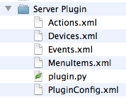
Each of the XML files describes the components that your plugin provides. You must also have at least the plugin.py file which is the entry point into the Python code that executes your plugin. Beyond that, you may create any other structure you like inside the folder. We’ll go over each file in detail, but first we should discuss the general characteristics of the XML files.
Note: you can’t edit generic XML documents like these with the Property List Editor application - it will only edit correctly formatted property lists (which are XML, but specially formatted). You’ll need to use a generic text editor such as TextMate, TextWrangler, BBEdit or Xcode.
Indigo Plugin XML Conventions
The Indigo plugin XML is formulated with a few rules that will help you navigate it’s constituent parts. Elements, such as Field, Action, Device, etc., will always start with a capital letter. Attributes, such as id, type, defaultValue, etc, will always start with a lowerCase letter. Both elements and attributes will be camel case - that is, aside from the initial character described above, each new word will be capitalized.
Important
Most of the major elements will have an id of some kind. It's extremely important that you follow these rules when creating the id.
id's:
- can contain letters, numbers, and other ASCII characters,
- cannot start with a number or punctuation character,
- cannot start with the letters xml (XML, Xml, etc.), and
- cannot contain spaces.