Connecting X10 Interfaces
In this guide
How to connect an X10 RF interface and add X10 devices to Indigo using house/unit codes. Covers the device type selection dialog, the Module Definition dialog for unlisted devices, and how to control X10 devices from Indigo actions.
If you are using a PowerLinc or CM15 then enable it as described in the Managing Insteon Devices document.
The process for connecting X10 RF Interfaces is basically the same as for power line interfaces - you just need to select the correct serial port. The W800USB will require installing the FTDI drivers mentioned above. You only need to use this interface if you're using a separate X10 RF interface like the W800 or MR26.
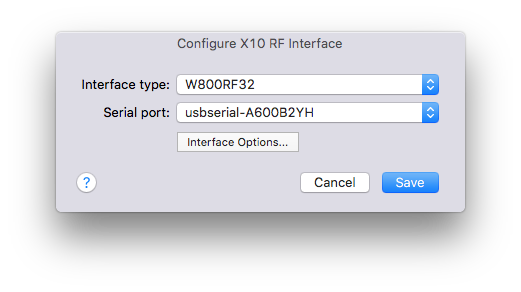
Adding and Managing X10 Devices
First, make sure that Indigo has enabled communication with the interface. If Indigo is not online with the interface, then choose the Interfaces->Insteon/X10 Power Line->Enable menu item. See connecting the Interface in the Getting Started guide for more details.
TIP
You may also need to bridge the two phases of your power line to get reliable communication. Search for "X10 signal bridge" in your favorite search engine for details.
To add an X10 device, select DEVICES in the outline view (or one of it's sub-folders) and click the New... button. Select X10 from the Type: popup and you'll see the following:
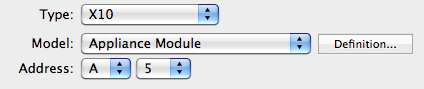
Every X10 device in Indigo is defined by a collection of settings that detail the characteristics of that device. For example, there are several different X10 codes used to dim and brighten light switch devices. Depending on the type of device module used, it will respond to some X10 codes for dimming but not others. And some devices have additional features, like the ability to transmit back to Indigo when the device is turned on and off locally at the device itself.
Normally, you will not need to worry about these device settings. By choosing the correct device type in the device dialog, Indigo automatically chooses the correct settings for that particular device module.
However, you may have a device module not currently listed in the Type popup menu. To use devices that are not defined in the device Type popup, you can click the Definition... button you will be shown the Module Definition dialog:
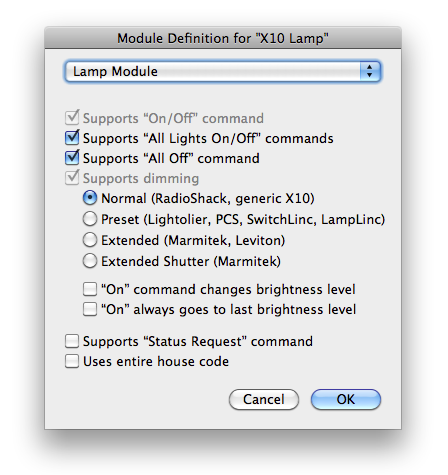
If you know the specific features of your X10 device you can manually set them here. If you have difficulties finding the settings for a device you have, then visit our online support forum. It is possible that one of our users has already discovered the correct settings to use.